Control Any Document
Camera, Anywhere
Present, annotate, and share your content.
No matter the make, or model of your camera.



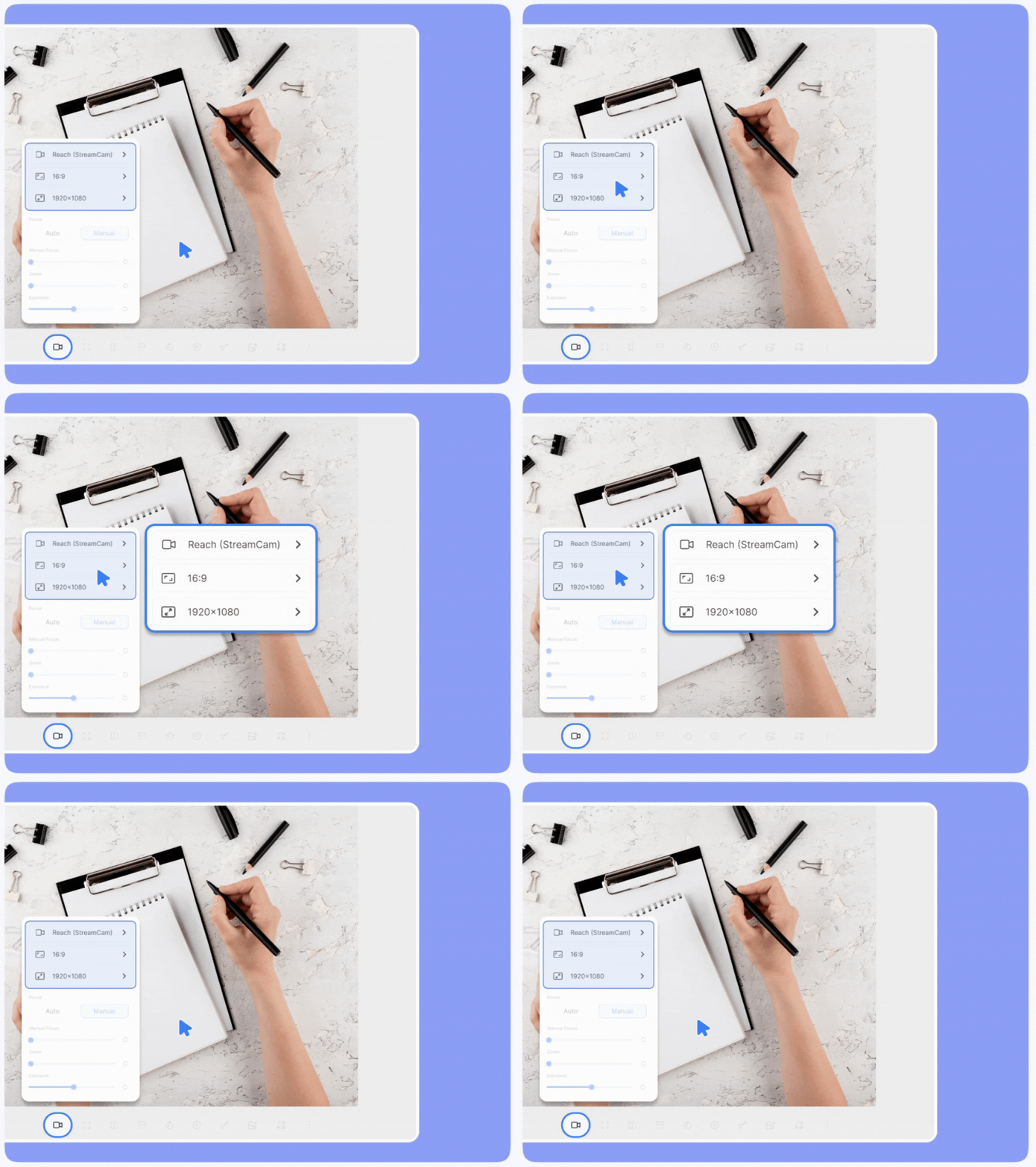
Easy Camera Setup
Pick your camera. Set your ratio & resolution.
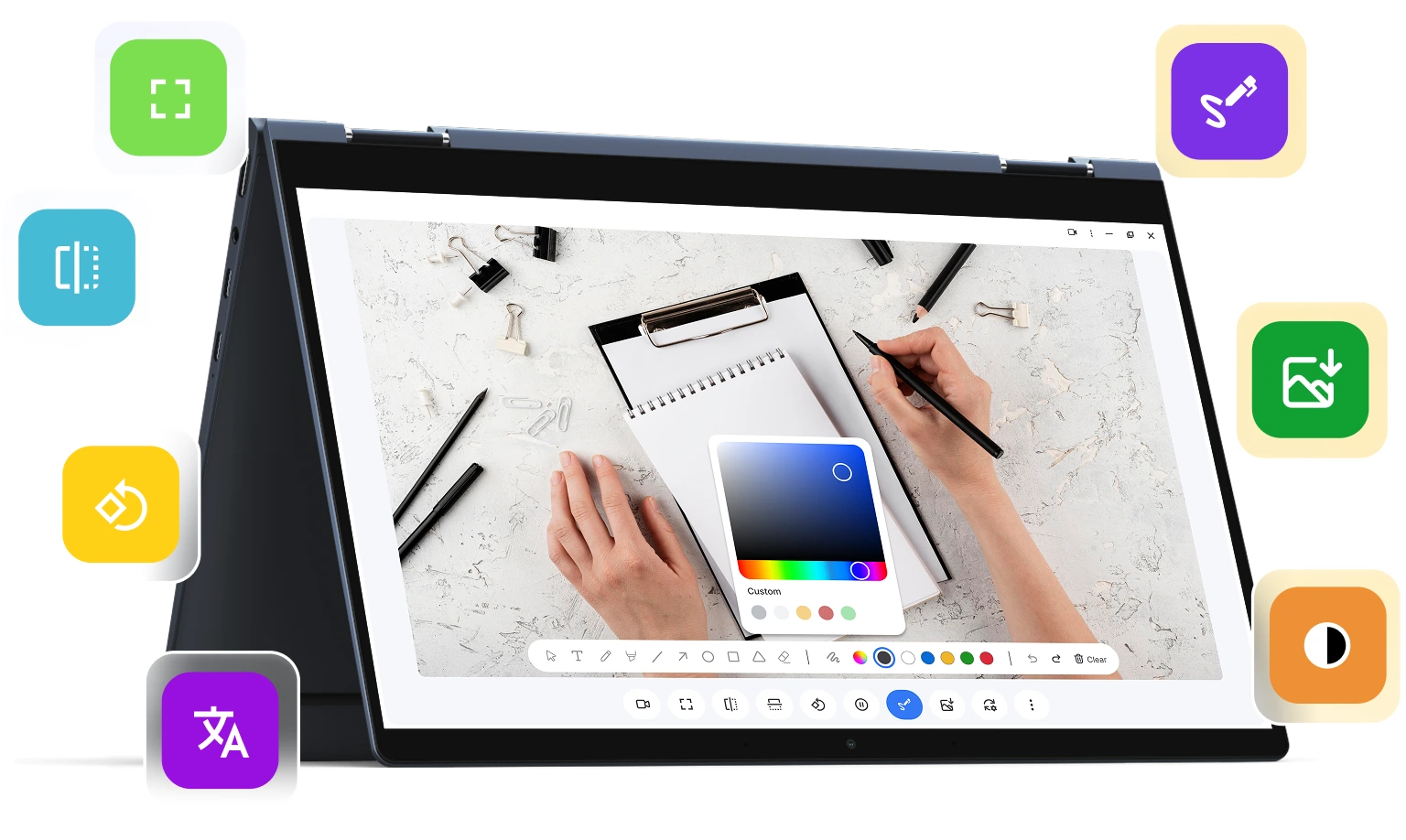
Switch between connected document cameras, adjust aspect ratio, or select resolution all from a simple and clean interface.

Unified Camera Controls
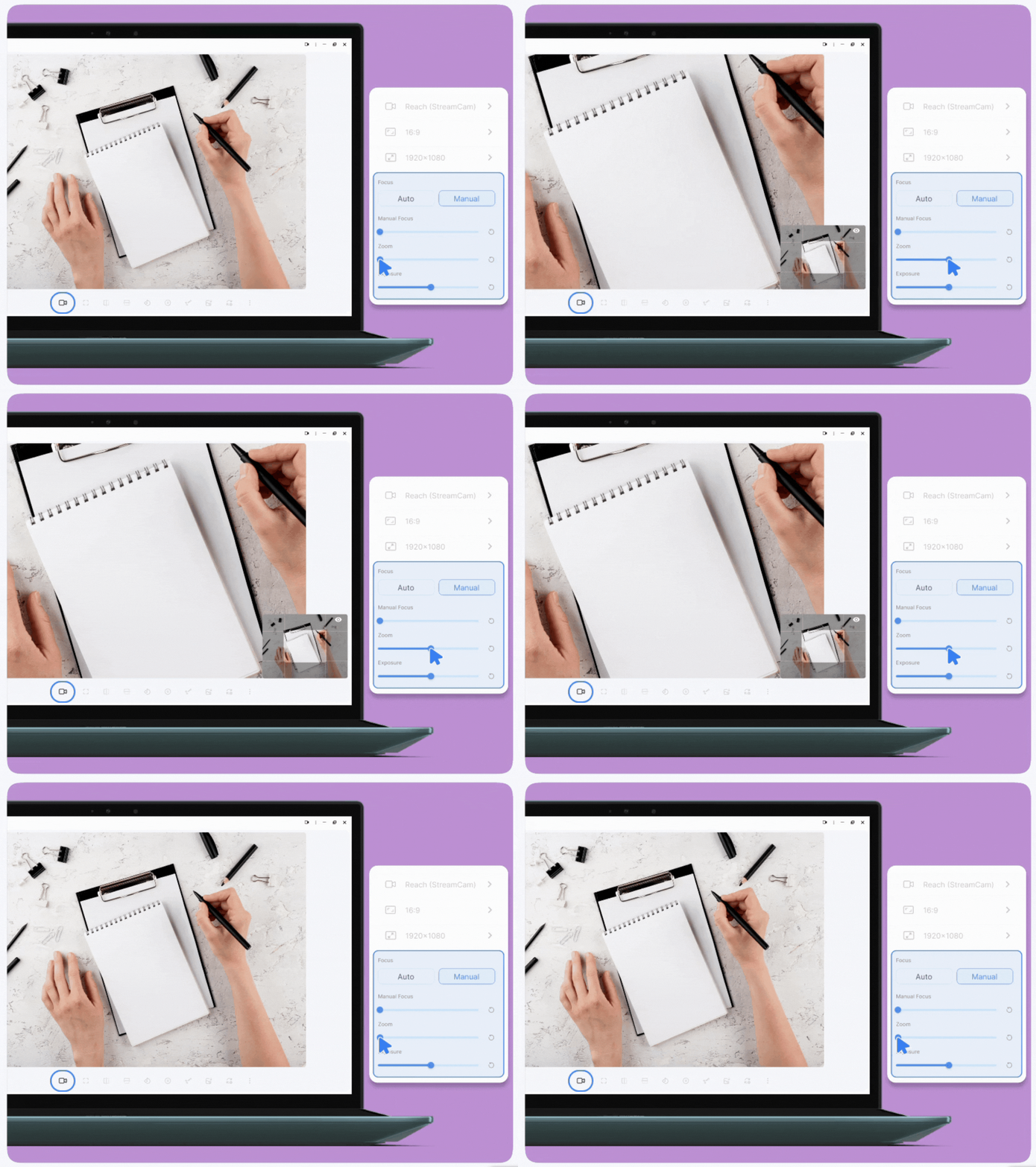
Focus. Zoom. Exposure.
Easily adjust focus, zoom, and exposure to fine-tune the live feed. Whether you're zooming in on text or adjusting for lighting, the app gives you full control.

Live Feed Adjustments
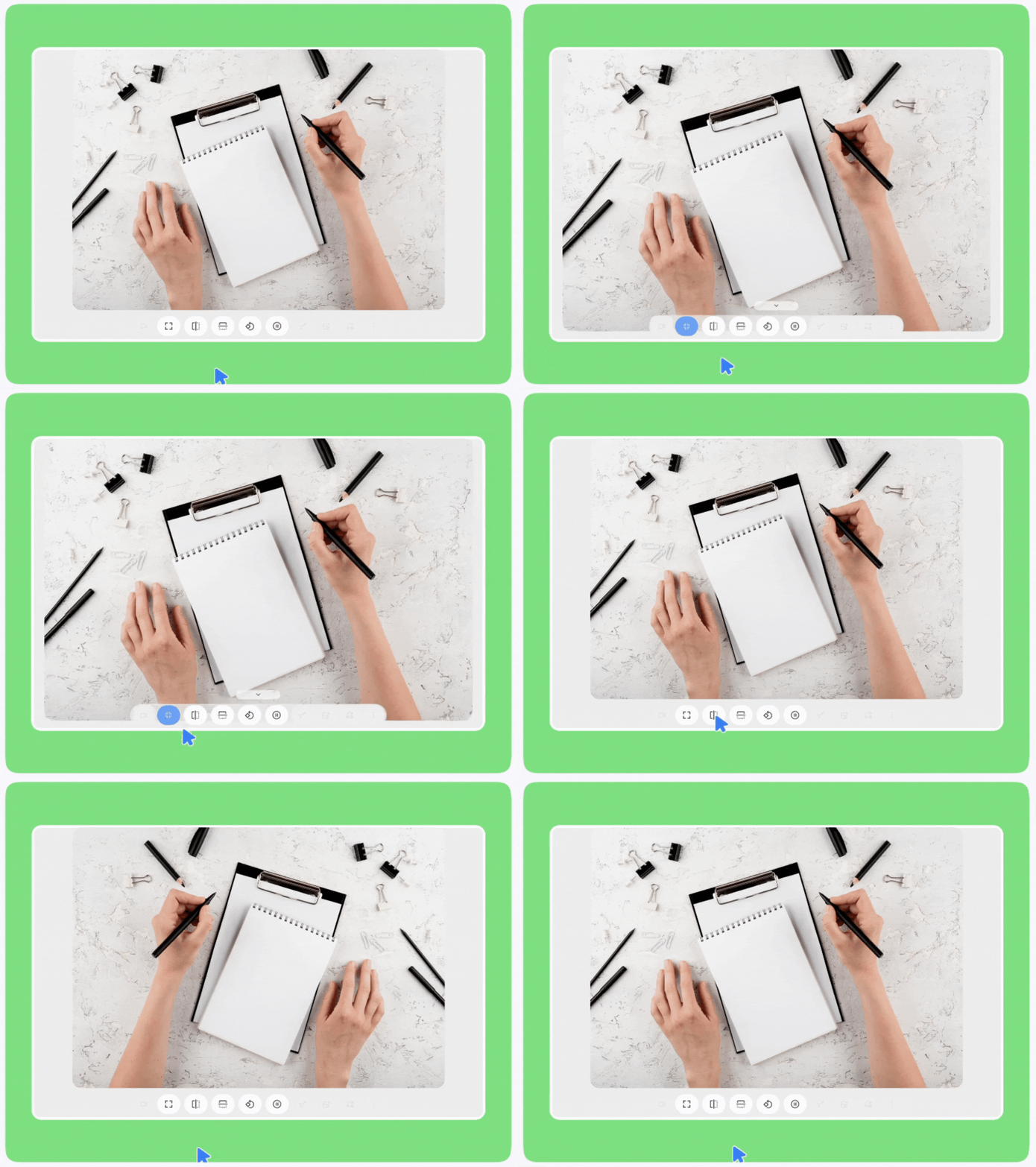
Full screen. Flip. Rotate. Freeze
Adjust your live feed with ease. Flip it horizontally or vertically, rotate for portrait or landscape viewing, or freeze the frame to pause. View live feed in full screen mode.

On-Screen Annotation
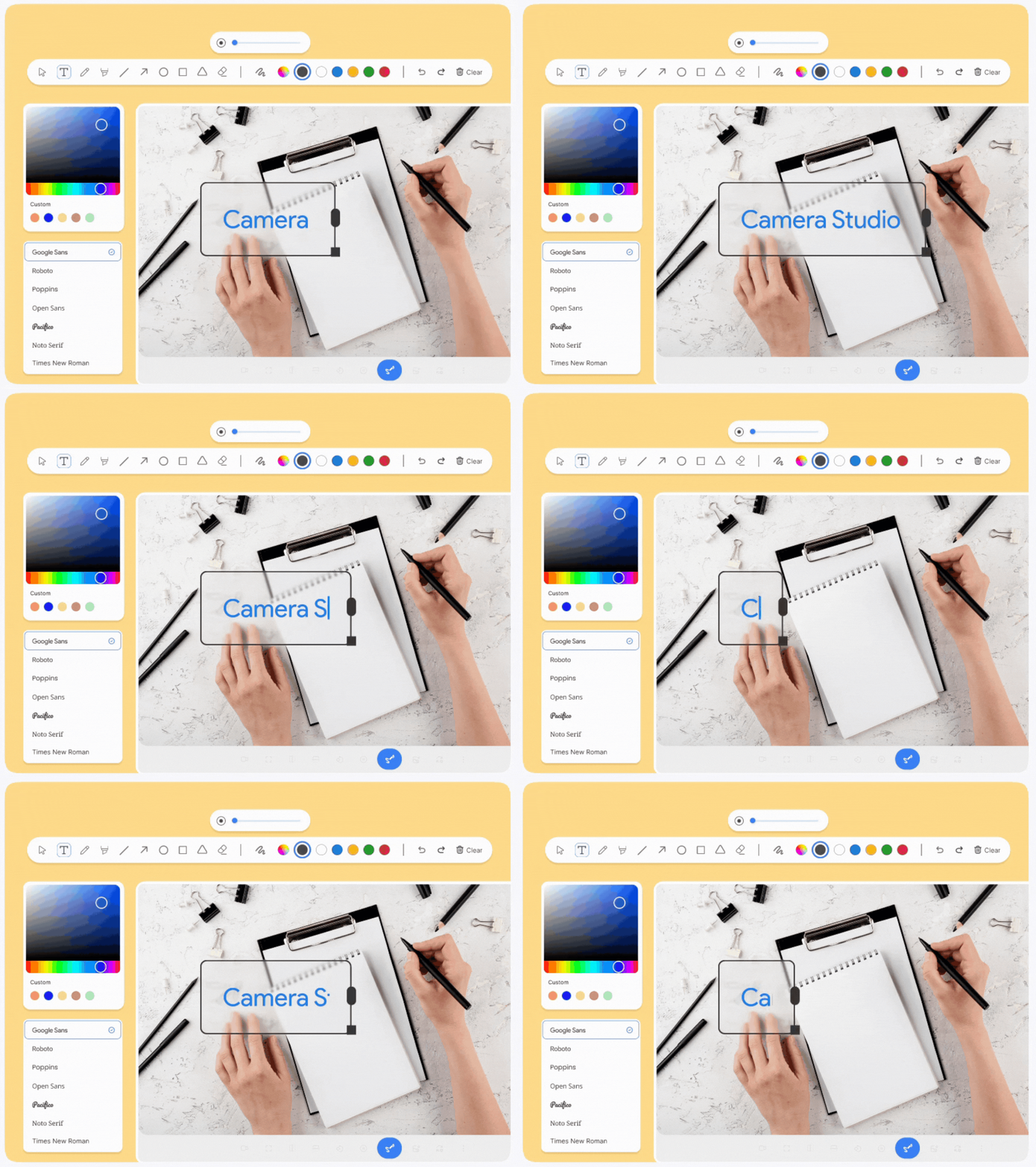
Draw. Type. Highlight.
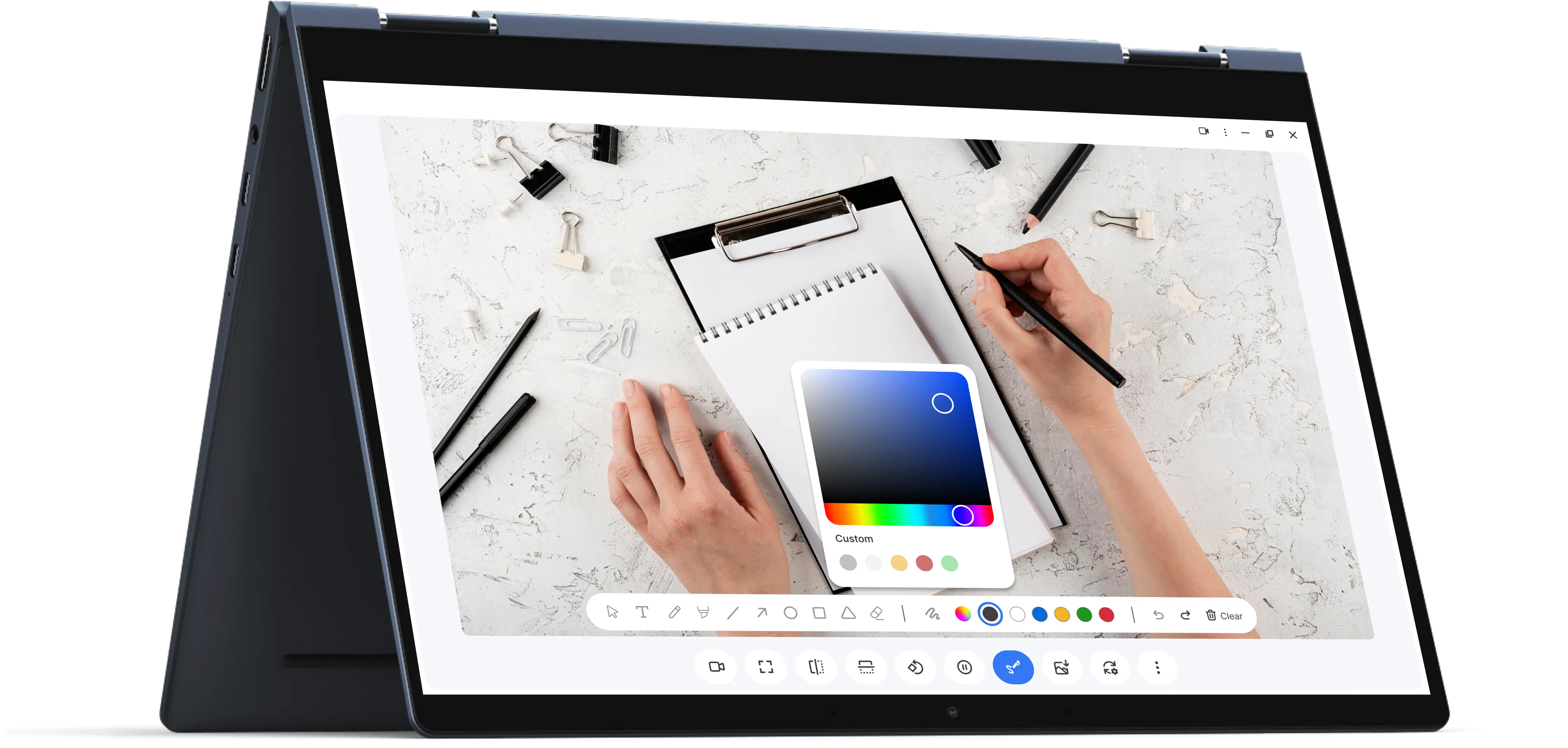
Mark up your video feed in real-time. Use drawing tools, text labels, and colors to enhance your lesson, walkthrough, or explanation on the spot.

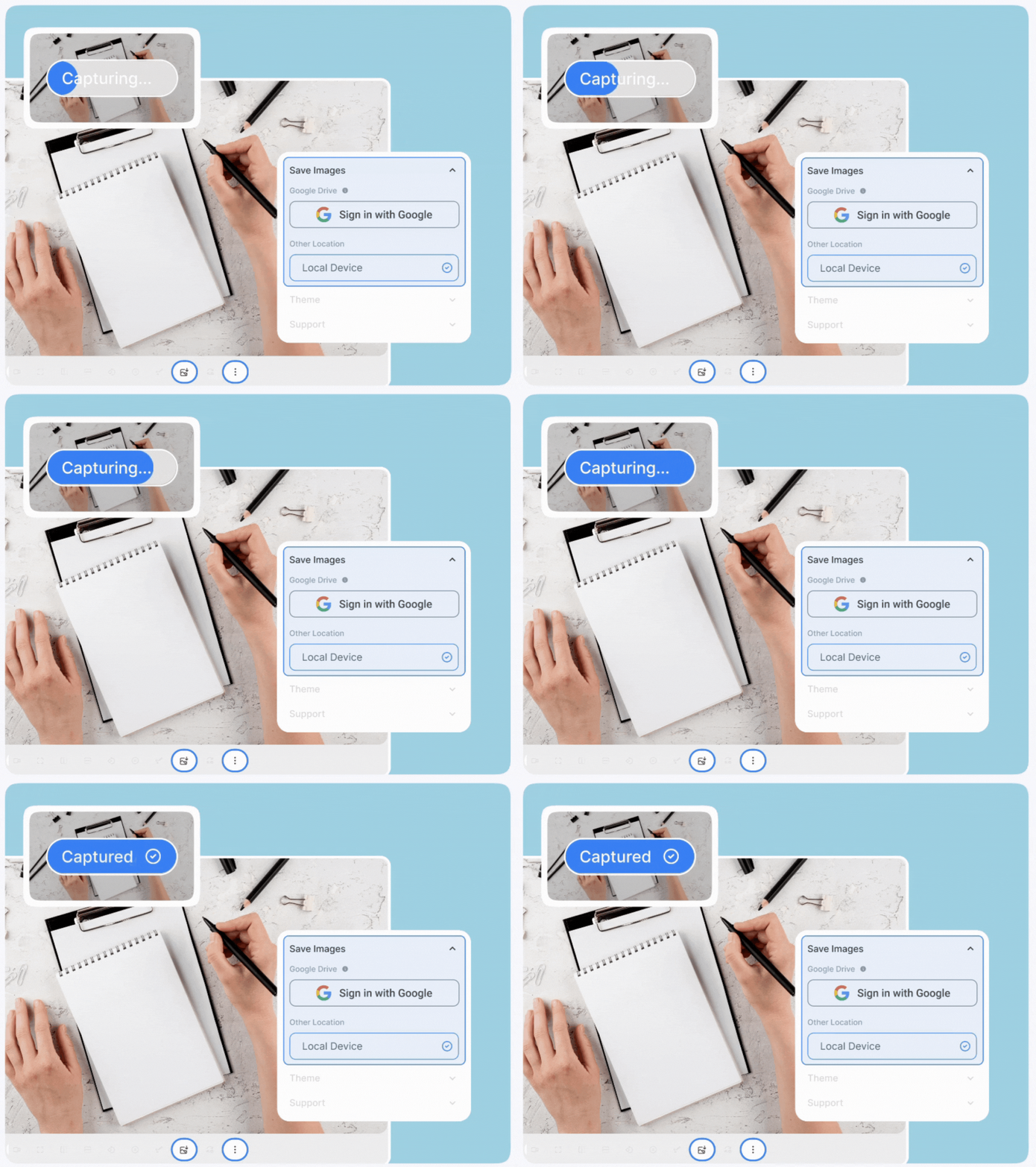
Capture & Store with Ease
Local or Cloud
Capture images and save them directly to your device or Google Drive. All your content is stored safely, with easy access for future reference or sharing.
Camera Compatibility
Ready for Your Document Camera - Seamless support for all common document
cameras.


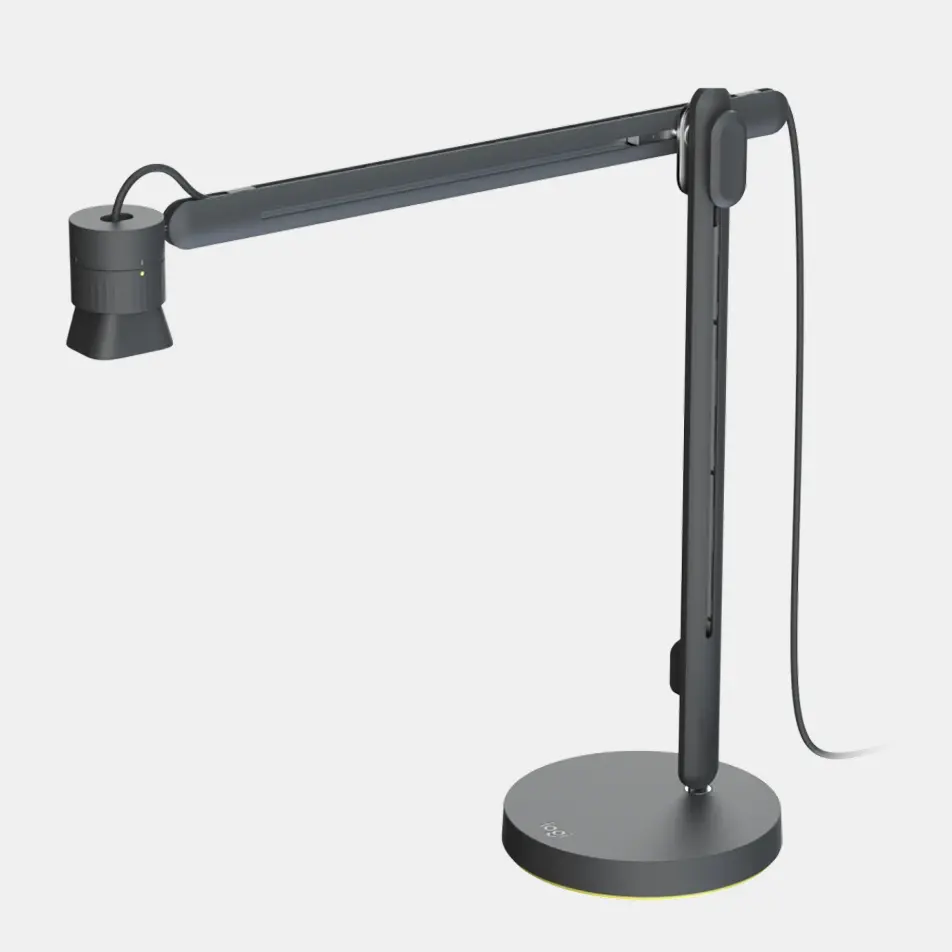

Logitech Reach
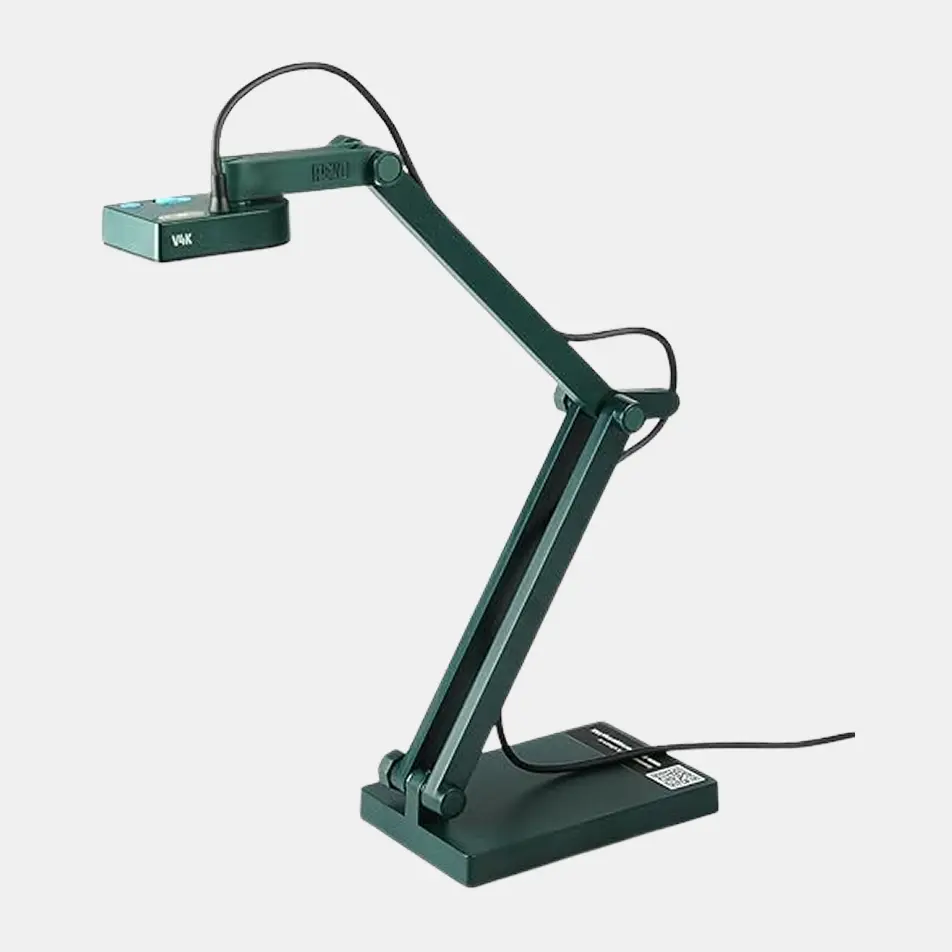

IPEVO V4K
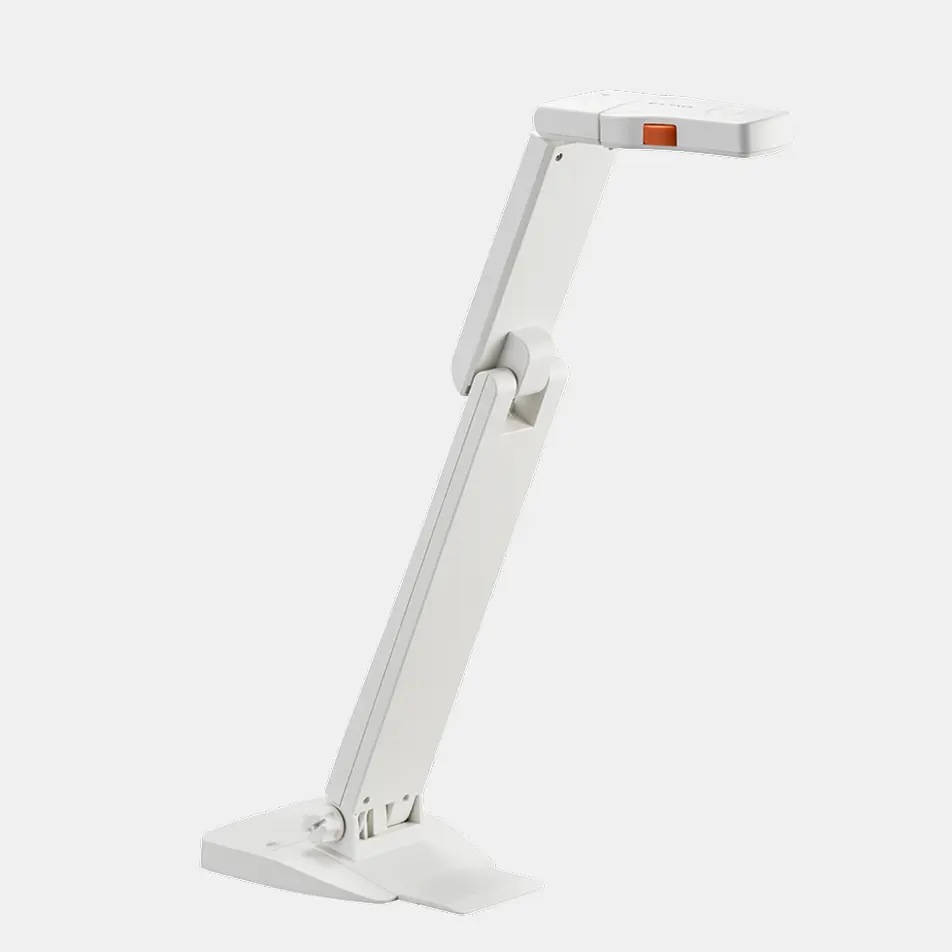

ELMO OX-1
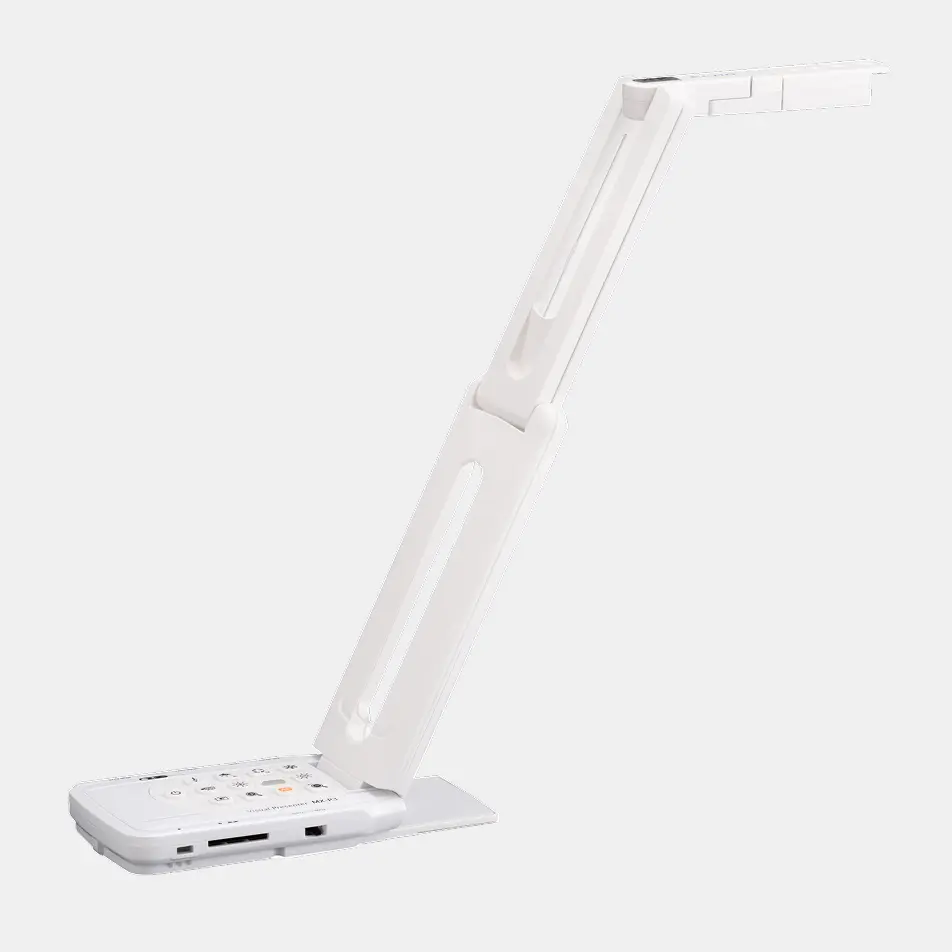
ELMO MX-P3
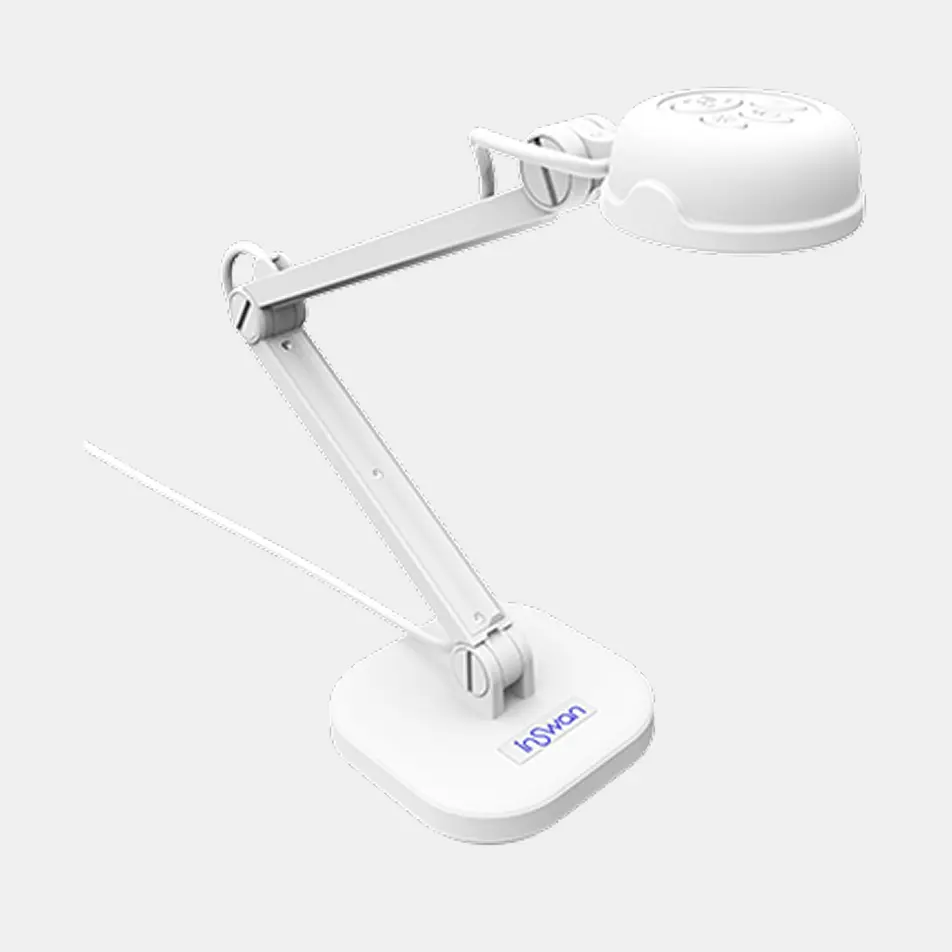

Inswan INS-1
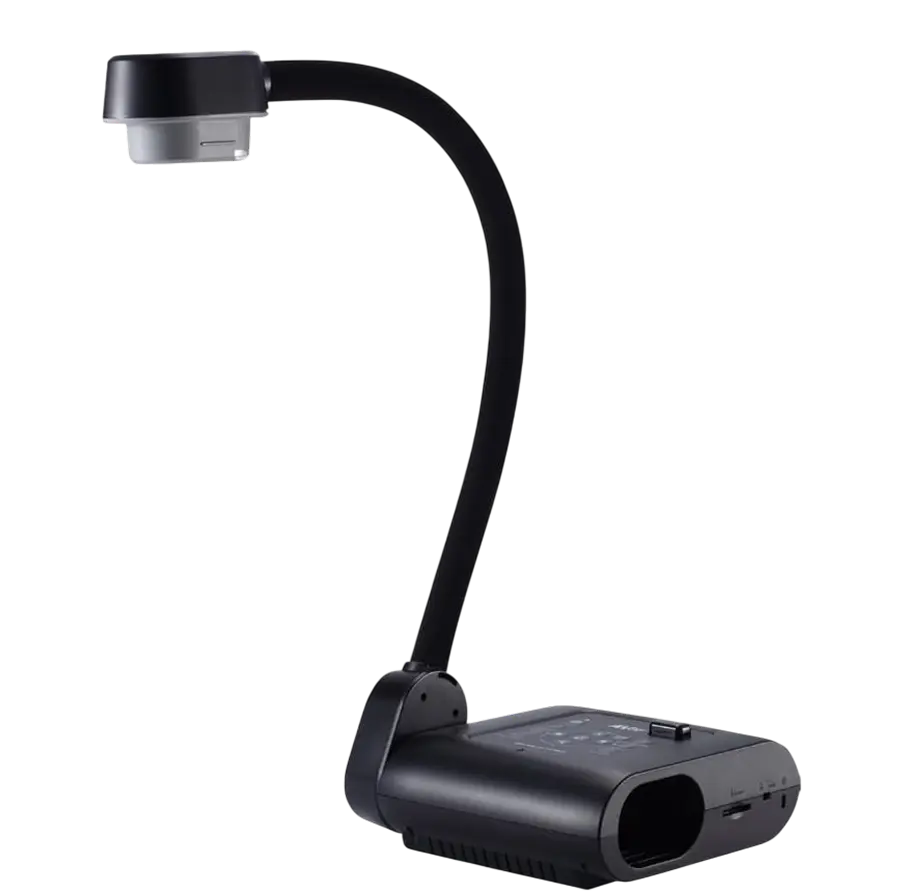

AVerVision F17-8M
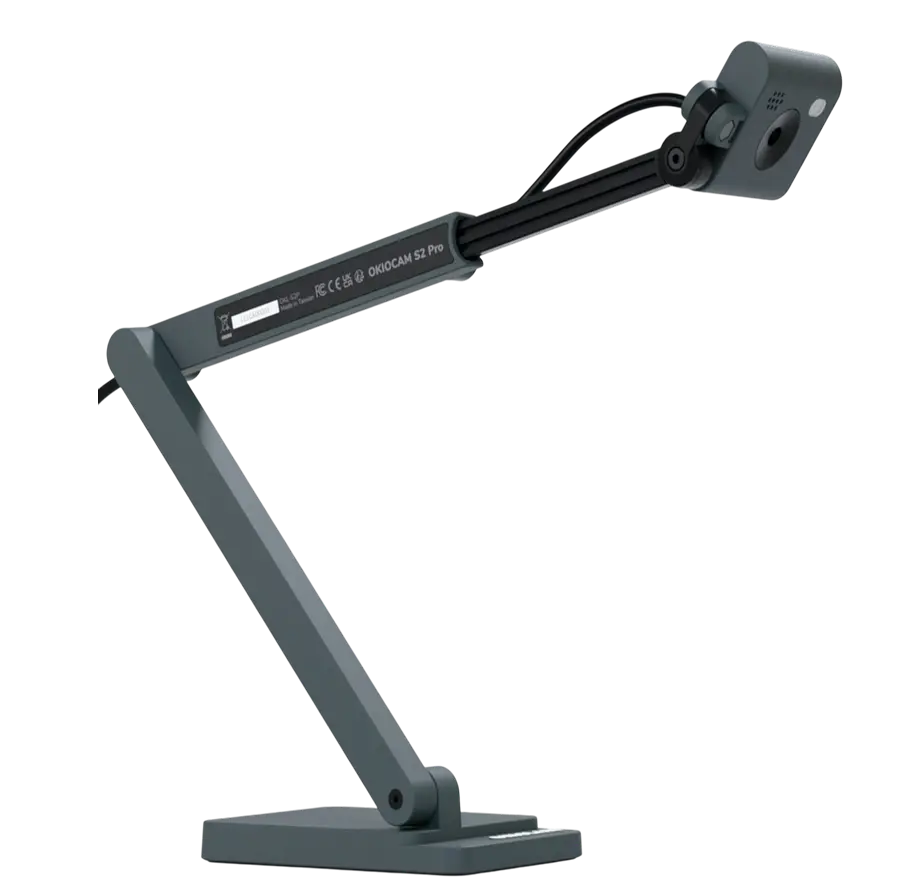

OKIOCAM S2 Pro
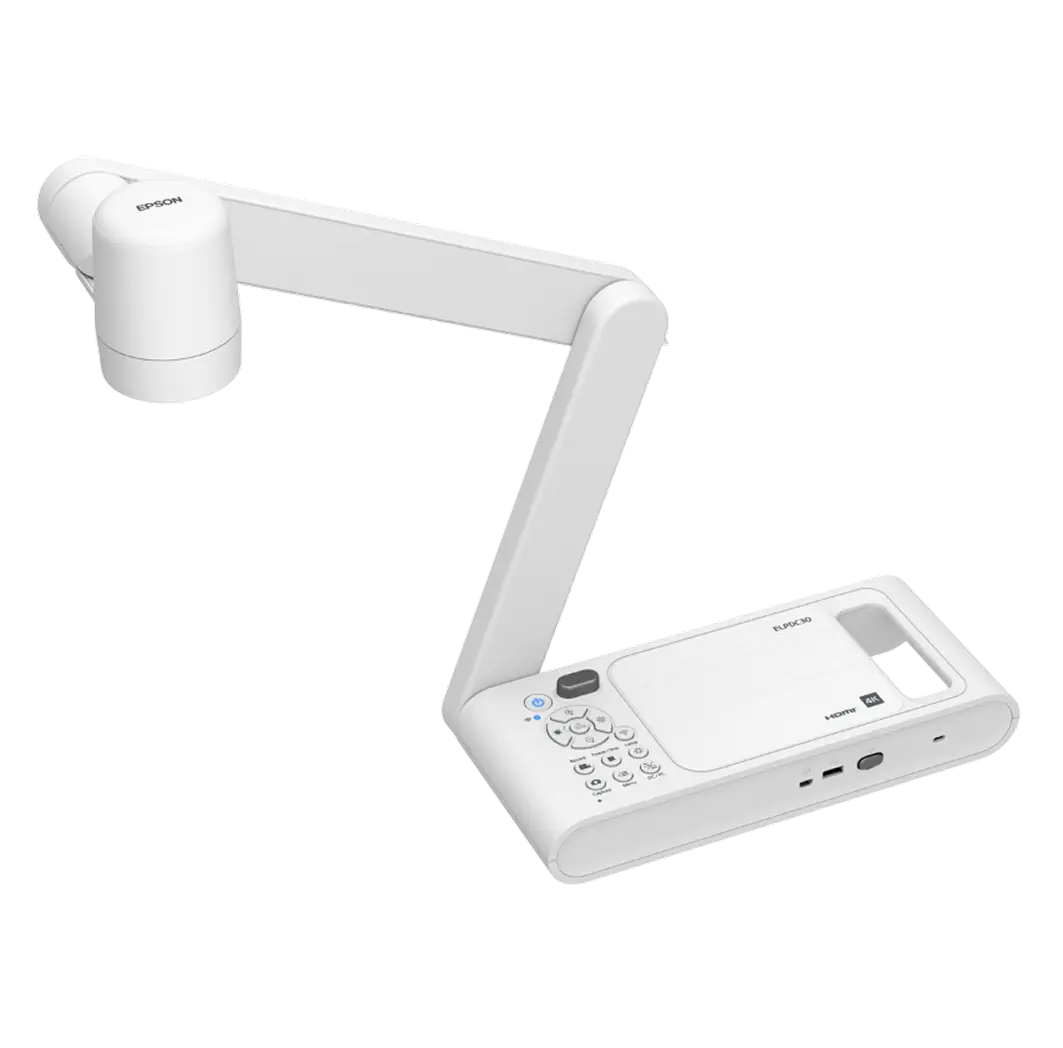

Seiko Epson
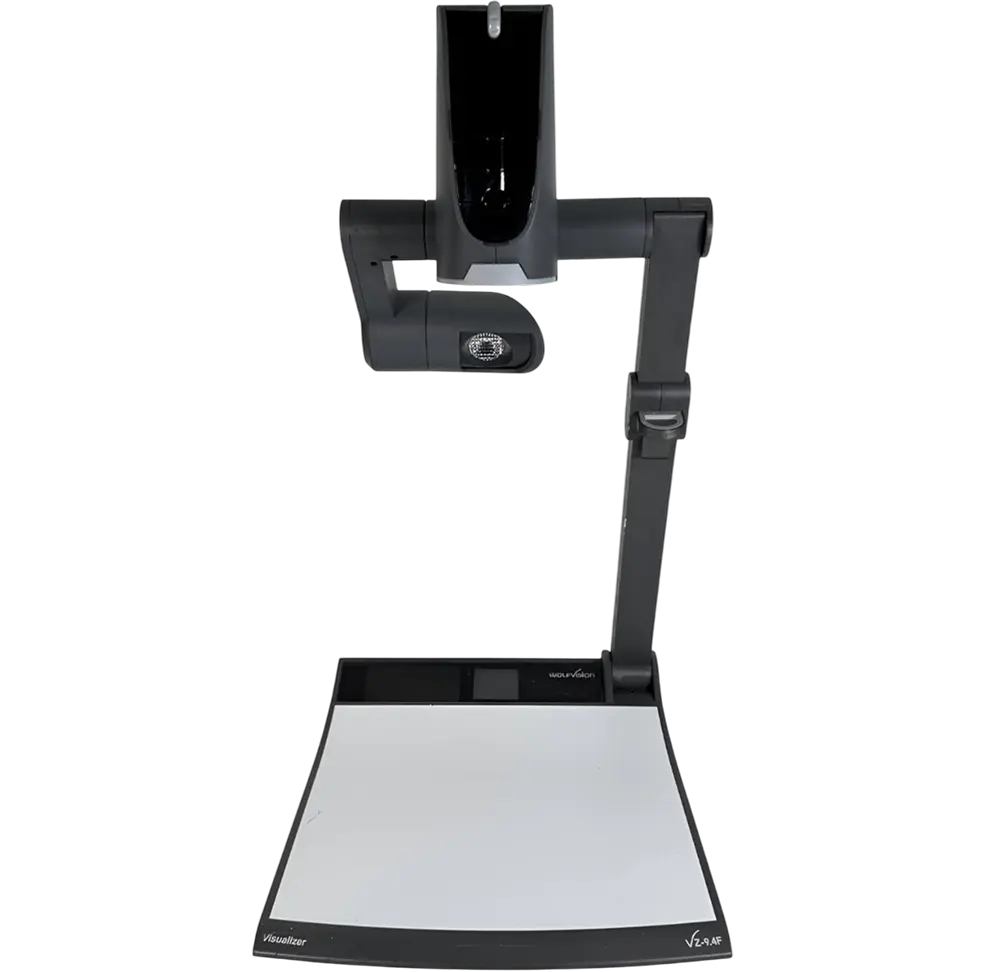

WolfVision VZ-9
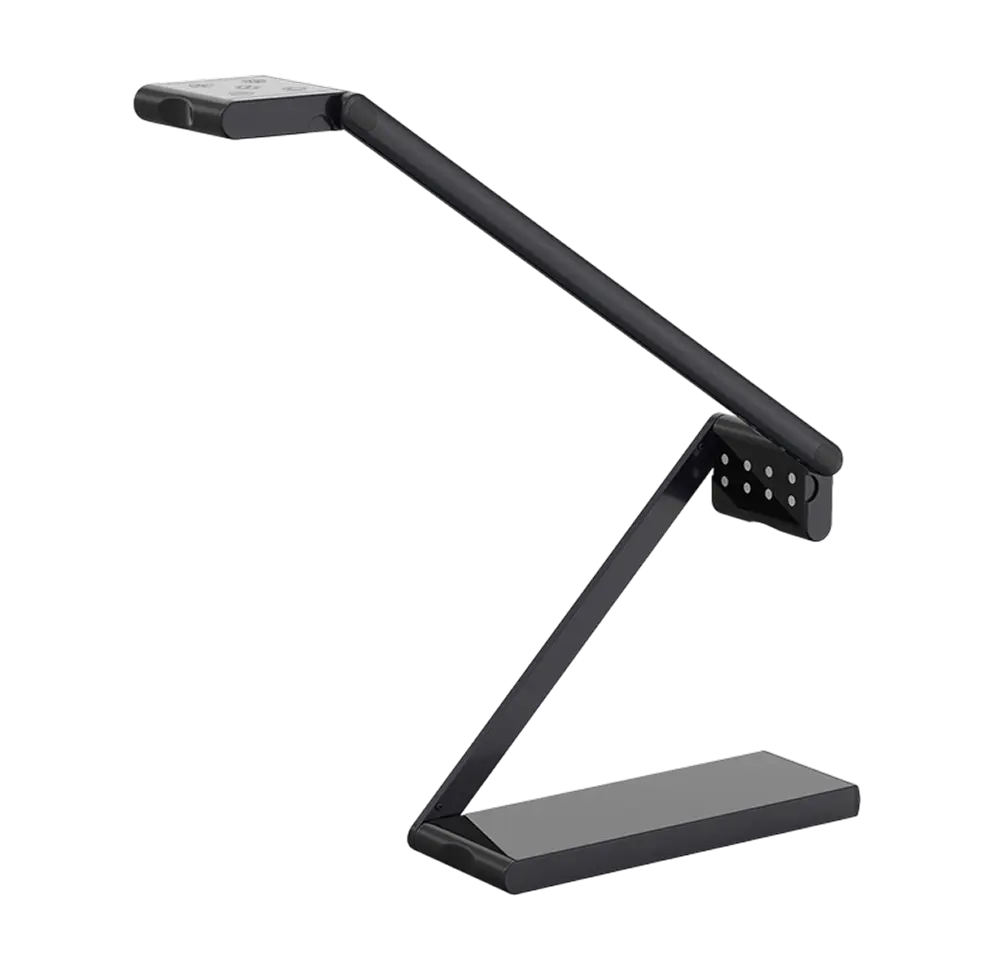

ZSEEWCAM
placeholder

And supports any
UVC-compliant camera
New to Camera Studio?
Camera Studio works with your document camera and offers the features you need
compatible with all major models.

Anyone needing a high-quality document camera experience
This app is ideal for teachers, presenters, remote workers, and anyone who needs to showcase documents, books, or objects in detail. It's perfect for virtual meetings, training sessions, science demonstrations, art tutorials, and other scenarios where visual clarity and manipulation of content are key

Yes, but indirectly
This app is a web-based application designed for ChromeOS and runs directly in the Chrome browser. To use this app in a Zoom, Meet, or Teams call, simply share the browser window or the tab where the app is running.

No
No internet connection is required to use the app. All features—including live view, annotations, and snapshots—work offline. If you'd like to save screenshots to Google Drive, you'll need to sign in with your Google account.
Ready to use Camera Studio?

Quick Access